 SoftFever
f6ff15ed99
SoftFever
f6ff15ed99
# Description

This PR introduces persistent, capability-scoped configuration for plugins. Users can configure plugins through the Plugins dialog instead of manually editing the plugin’s Python source.

Configuration exists at two levels:

- **Global** — one configuration per capability, shared by every preset. Edited in the Plugins dialog’s **Config** tab.
- **Per preset** — an optional override stored on a process or printer preset, edited from that preset’s **Plugin Preferences** group. A preset that overrides a capability configures the slices it drives; presets that do not simply use the global configuration.

Plugin authors can use the built-in JSON editor or provide a custom HTML settings interface. Both levels use the same editor and the same stored shape.

## New Plugin Configuration APIs

The following APIs are available to all plugin capability types.

### Python APIs

- `get_config() -> str` — Returns a raw JSON string of the capability’s effective configuration: the active preset’s override if it has one, otherwise the global configuration, otherwise `{}`.
- `save_config(config) -> bool` — Persists JSON-compatible configuration for the capability and returns whether the write succeeded. Always writes the **global** configuration (see [Preset overrides](#preset-overrides)).
- `get_config_version() -> str` — Returns the plugin version that last saved the configuration `get_config()` returned, from that same level, or `""` if it has never been saved.
- `has_config_ui() -> bool` — Override and return `True` to use a custom configuration interface instead of the built-in JSON editor.
- `get_config_ui() -> str` — Returns the HTML used to render the custom configuration interface.
- `get_default_config() -> str` — Returns a raw JSON string of the configuration applied by **Restore defaults** in the Plugins dialog. The default implementation returns `{}`.

### Custom UI JavaScript APIs

Custom configuration interfaces receive a sandboxed `window.orca` bridge:

- `window.orca.getConfig()` — Returns the current capability configuration.
- `window.orca.saveConfig(config)` — Requests that the host persist the supplied configuration.
- `window.orca.onConfig(callback)` — Immediately invokes the callback with the current configuration and invokes it again after successful saves or restores.

`saveConfig()` is asynchronous and does not return a Promise. Custom interfaces should use `onConfig()` to observe the successfully persisted state.

## Plugins Dialog

Every activated capability appears in the Plugins dialog’s **Config** tab, where its global configuration is edited.

The editor shown for a capability is selected as follows:

- If `has_config_ui()` returns `True` and `get_config_ui()` returns valid, non-empty HTML, the dialog renders the custom interface.
- Otherwise, the dialog renders the built-in JSON editor.
- If a custom interface cannot be loaded, the dialog reports the error and falls back to the JSON editor.
- The **Restore defaults** action replaces the stored configuration with the value returned by `get_default_config()`.

Custom interfaces run in a sandboxed iframe and can access configuration only through the provided `window.orca` bridge.

## Preset overrides

Process and printer presets gain a **Plugin Preferences → Capabilities** setting (Advanced mode). Its **Configure** button opens a dialog listing the capabilities that preset actually uses — the ones its `plugins` manifest declares *and* one of its plugin-backed options points at — and edits each one’s configuration for that preset alone. The button shows the number of overrides the preset carries.

That dialog offers two actions:

- **Save** — stores the edited configuration as this preset’s override.
- **Restore defaults** — discards the preset’s override, so the capability falls back to the global configuration. A preset holding no override *is* a preset at its defaults.

### How a running capability reads its configuration

`get_config()` resolves in this order:

1. The active preset’s override for this capability, if it has one.
2. The global configuration in `config.json`.
3. `{}`.

Which preset is consulted follows from the capability’s type. A plugin-backed option declares the capability type it accepts (`ConfigOptionDef::plugin_type`) and belongs to exactly one preset type, so `slicing-pipeline` capabilities are configured by the process preset and `printer-connection` capabilities by the printer preset. Nothing is hardcoded: declaring `plugin_type` on a new option is all it takes to place a new capability type on that map.

`get_config_version()` reports the version stamp from whichever level supplied the configuration, so a plugin migrating a stale config is never handed one level’s data with another level’s version.

`save_config()` from Python always writes the global configuration, never a preset — presets are the user’s to edit, and a plugin saving from a worker thread cannot mark one dirty. A capability whose active preset overrides it will therefore keep reading that override back rather than what it saved.

### Storage

A preset’s overrides live in an ordinary string setting on the preset (`plugin_preference_overrides`), holding a JSON array of entries keyed by plugin and capability. Because it is an ordinary setting, the whole preset lifecycle carries it for free: the dirty marker, the revert arrow, inheritance, project (3MF) round-tripping, and preset sync all behave exactly as they do for every other setting. The dialog is a pure editor over that text — it never writes to the preset itself and never writes to the global config file.

## Configuration Storage

All global plugin configuration is stored in a shared file:

`data_dir()/orca_plugins/config.json`

Configuration entries are isolated by plugin and capability. The host also records the plugin version that last wrote each entry.

The configuration file is intentionally stored outside individual plugin directories. This allows settings to survive:

- Plugin upgrades and reloads
- Local plugin deletion and reinstallation
- Cloud plugin unsubscribe and resubscribe operations

Reinstalling or resubscribing to the same plugin restores access to its previously saved configuration.

## Known limitations

**Filament capabilities cannot be overridden per preset.** There is no single active filament preset — one is selected per extruder — and `get_config()` does not say which extruder the capability is running for, so a filament override could only be applied by guessing. Rather than hand a plugin another extruder's settings, filament capabilities read the global configuration.

Nothing reaches this today: no filament option declares a `plugin_type`, so no capability type maps to the filament preset. Lifting it means pushing the extruder onto the plugin call context the Python trampoline already maintains and resolving the preset from that, with the extruder optional — whole slicing steps (`posSlice`, `psGCodePostProcess`) span every extruder and have no current filament.

# Tests

`tests/slic3rutils` covers the capability config store, the Python config API, the preset override layer, the capability-type → preset-type mapping, and which capabilities a preset counts as in use.

# Screenshots/Recordings/Graphs

Custom UI
<img width="855" height="703" alt="image" src="https://github.com/user-attachments/assets/745ecb7d-9e20-4c39-b857-5aa730a27142" />

Default JSON text editor
<img width="855" height="703" alt="image" src="https://github.com/user-attachments/assets/18b7b89c-6f77-4960-a9b2-964e71f74fc3" />

Process Sidebar
<img width="717" height="360" alt="image" src="https://github.com/user-attachments/assets/8fac3e66-c06a-44e4-ad4b-4cc6c003bb2b" />

Filament dialog
<img width="1090" height="832" alt="image" src="https://github.com/user-attachments/assets/ff6a4cbe-11c0-4d04-9ecb-9a717bdeb3f4" />

Printer settings dialog
<img width="1090" height="832" alt="image" src="https://github.com/user-attachments/assets/c616afb0-4eb2-40c2-92c0-7f5edc50b4e6" />

Dialog opened from preset settings
<img width="860" height="725" alt="image" src="https://github.com/user-attachments/assets/069408a8-e94b-47e0-8e16-a81e0d58b4d4" />

# Example plugin with custom UI used in screenshot
[custom_ui_screenshot_demo.py](https://github.com/user-attachments/files/29995212/custom_ui_screenshot_demo.py)

<!--
> A guide for users on how to download the artifacts from this PR.
-->

[How to Download Pull Requests Artifacts for Testing](https://www.orcaslicer.com/wiki/how_to_download_pr_artifacts)


OrcaSlicer: an open source Next-Gen Slicing Software for Precision 3D Prints.
Optimize your prints with ultra-fast slicing, intelligent support generation, and seamless printer compatibility—engineered for perfection.
Official links and community
Official Website:
Github Repository:

Follow us:


Join our Discord community:

|
⚠️ CAUTION: Several clickbait and malicious websites, such as orca-slicer[.]com and orcaslicer[.]net, are pretending to be the official OrcaSlicer site. These sites may redirect you to dangerous downloads or contain misleading information. Our only official website is www.orcaslicer.com. If you come across any of these in search results, please report them as unsafe or phishing to help keep the community secure with: - Google Safe Browsing - Microsoft Security Intelligence - IPThreat |
Main features
- Advanced Calibration Tools
Comprehensive suite: temperature towers, flow rate, retraction & more for optimal performance. - Precise Wall and Seam Control
Adjust outer wall spacing and apply scarf seams to enhance print accuracy. - Sandwich Mode and Polyholes Support
Use varied infill patterns and accurate hole shapes for improved clarity. - Overhang and Support Optimization
Modify geometry for printable overhangs with precise support placement. - Granular Controls and Customization
Fine-tune print speed, layer height, pressure, and temperature with precision. - Network Printer Support
Seamless integration with Klipper, PrusaLink, and OctoPrint for remote control. - Mouse Ear Brims & Adaptive Bed Mesh
Automatic brims and adaptive mesh calibration ensure consistent adhesion. - User-Friendly Interface
Intuitive drag-and-drop design with pre-made profiles for popular printers. - Open-Source & Community Driven
Regular updates fueled by continuous community contributions. - Wide Printer Compatibility
Supports a broad range of printers: Bambu Lab, Prusa, Creality, Voron, and more. - Additional features can be found in the change notes.
Wiki
The wiki aims to provide a detailed explanation of the slicer settings, including how to maximize their use and how to calibrate and set up your printer.
Download
Stable Release
📥 Download the Latest Stable Release
Visit our GitHub Releases page for the latest stable version of OrcaSlicer, recommended for most users.
Nightly Builds
🌙 Download the Latest Nightly Build
Explore the latest developments in OrcaSlicer with our nightly builds. Feedback on these versions is highly appreciated.
How to install
Windows
Download the Windows Installer exe for your preferred version from the releases page.
-
For convenience there is also a portable build available.
Troubleshooting
- If you have troubles to run the build, you might need to install following runtimes:
- MicrosoftEdgeWebView2RuntimeInstallerX64
- vcredist2019_x64
- Alternative Download Link Hosted by Microsoft
- This file may already be available on your computer if you've installed visual studio. Check the following location:
%VCINSTALLDIR%Redist\MSVC\v142
Windows Package Manager
winget install --id=SoftFever.OrcaSlicer -e
Mac
-
Download the DMG for your computer:
arm64version for Apple Silicon andx86_64for Intel CPU. -
Drag OrcaSlicer.app to Application folder.
-
If you want to run a build from a PR, you also need to follow the instructions below:
Quarantine
-
Option 1 (You only need to do this once. After that the app can be opened normally.):
- Step 1: Hold cmd and right click the app, from the context menu choose Open.
- Step 2: A warning window will pop up, click Open
-
Option 2: Execute this command in terminal:
xattr -dr com.apple.quarantine /Applications/OrcaSlicer.app -
Option 3:
- Step 1: open the app, a warning window will pop up
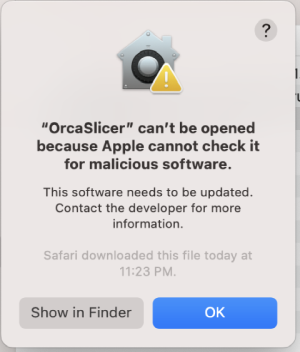
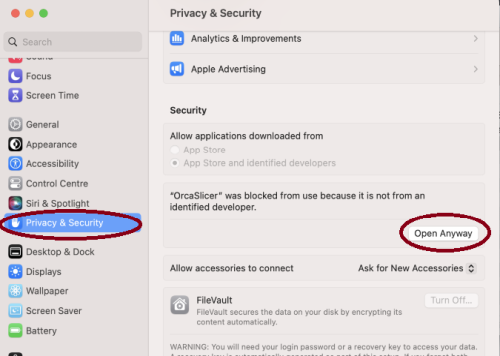
- Step 2: in
System Settings->Privacy & Security, clickOpen Anyway:
- Step 1: open the app, a warning window will pop up
-


Linux
Flathub (Recommended)
OrcaSlicer is available through FlatHub:

Install from the command line:
flatpak install flathub com.orcaslicer.OrcaSlicer
flatpak run com.orcaslicer.OrcaSlicer
It can also be installed through graphical software managers (KDE Discover, GNOME Software, etc.) when Flathub is enabled. Search for OrcaSlicer in your software center.
AppImage
AppImages are published for both x86_64 and aarch64 (ARM64). Pick the file matching your CPU — the ARM64 build has aarch64 in its name (e.g. OrcaSlicer_Linux_AppImage_Ubuntu2404_aarch64_*.AppImage).
-
Download App image from the releases page.
-
Double click the downloaded file to run it.
-
If you run into trouble executing it, try this command in the terminal:
chmod +x /path_to_appimage/OrcaSlicer_Linux.AppImage
How to Compile
All updated build instructions for Windows, macOS, and Linux are now available on the official OrcaSlicer Wiki - How to build page.
Please refer to the wiki to ensure you're following the latest and most accurate steps for your platform.
Klipper Note
If you're running Klipper, it's recommended to add the following configuration to your printer.cfg file.
# Enable object exclusion
[exclude_object]

# Enable arcs support
[gcode_arcs]
resolution: 0.1
Supports
OrcaSlicer is an open-source project and I'm deeply grateful to all my sponsors and backers.
Their generous support enables me to purchase filaments and other essential 3D printing materials for the project.
Thank you! :)
Sponsors

|

|
Backers:
Ko-fi supporters ☕: Backers list
Support me



Some Background
Open-source slicing has always been built on a tradition of collaboration and attribution. Slic3r, created by Alessandro Ranellucci and the RepRap community, laid the foundation. PrusaSlicer by Prusa Research built on Slic3r and acknowledged that heritage. Bambu Studio in turn forked from PrusaSlicer, and SuperSlicer by @supermerill extended PrusaSlicer with community-driven enhancements. Each project carried the work of its predecessors forward, crediting those who came before.
OrcaSlicer began in that same spirit, drawing from BambuStudio, PrusaSlicer, and ideas inspired by CuraSlicer and SuperSlicer. But it has since grown far beyond its origins. Through relentless innovation — introducing advanced calibration tools, precise wall and seam control, tree supports, adaptive slicing, and hundreds of other features — OrcaSlicer has become the most widely used and actively developed open-source slicer in the 3D printing community. Many of its innovations have been adopted by other slicers, making it a driving force for the entire industry.
The OrcaSlicer logo was designed by community member Justin Levine.
License
- OrcaSlicer is licensed under the GNU Affero General Public License, version 3.
- The GNU Affero General Public License, version 3 ensures that if you use any part of this software in any way (even behind a web server), your software must be released under the same license.
- OrcaSlicer includes a pressure advance calibration pattern test adapted from Andrew Ellis' generator, which is licensed under GNU General Public License, version 3. Ellis' generator is itself adapted from a generator developed by Sineos for Marlin, which is licensed under GNU General Public License, version 3.
- The Bambu networking plugin is based on non-free libraries from BambuLab. It is optional to the OrcaSlicer and provides extended functionalities for Bambulab printer users.