 Tommaso Bianchi
5889f6640f
Tommaso Bianchi
5889f6640f
A rectangle with a circle inside it, drawn in ONE sketch, could not be extruded
to a plate with a bore from the GUI. Five defects were in the way. Each was
found by driving the app on a headless rig and measuring the result — the code
reads correctly at every one of these points, which is why they survived.

1. Wire orientation (kernel). SketchEngine::wires_to_face added every hole as
   wires[i].Reversed(), which is only right when the sketch happens to wind both
   loops the same way. A circle drawn clockwise inside a counter-clockwise
   rectangle came out matching the outer boundary, OCCT swept it as a SECOND
   contour, and the prism was the plate with its bore filled and the disc's
   volume counted twice. Measured: bbox 67.17 x 219.67 x 10 with volume
   152088 mm3 against a solid box of 147542 — a body larger than its own
   bounding box, which is the signature. Holes are now added as-is and
   ShapeFix_Face::FixOrientation() classifies them; that is winding-independent
   and is the idiom make_extrude_regions already used for imported glyphs, which
   is why holed TEXT always extruded correctly while a holed SKETCH never did.
   After the fix: 142996 mm3, implied bore radius 12.03 mm against the circle
   drawn.

2. The live-sketch click threw the picked region away. region_at() served only
   as a yes/no gate and on_face_selected() carried no argument, so Extrude fell
   back to whichever loop the resolver found first — clicking the material of a
   plate-with-a-hole extruded the disc. The region is now carried through, and
   DesignPanel also hands it to the tool with set_loop_pick(), AFTER open_tool()
   because that re-derives selection state, since extrude_uses_loop() reads
   selected_loop_entities() and that lives on the tool.

3. region_at() had no hole awareness and no innermost preference: it returned
   the first polygon containing the point. It now skips a region when the point
   lies inside one of that region's holes, and picks the smallest containing
   loop, so a click in the bore selects the disc and a click on the material
   selects the plate.

4. Startup segfault. DesignCanvas::request_repaint probed the GL backend via
   OpenGLManager::get_gl_info().get_renderer() before the canvas had initialised
   GL — glGetString with no context current and, before init_opengl(), no loaded
   function pointers. Anything that asked for a repaint while the panel was
   still being built landed there, with no window and nothing in the log. It now
   bails at the top on !is_initialized() and asks for a Refresh instead. Note
   the crash was in the PROBE, not in render(), which already guards itself.

5. A holed sketch on a plane whose normal points -Z came out as the full box PLUS
   a disc — 220274 mm3 where 163726 was due (192000 + 28274). wires_to_face took
   a SketchPlane parameter it never used and let OCCT infer a surface from the
   outer wire; when the inferred normal disagreed with the sketch's, the hole
   classification produced no hole. Every face is now built on the sketch's own
   gp_Pln.

Also in this change, from the same rig session:

- A right-click that only clears the sketch selection no longer reports itself
  as consumed, so it stops suppressing the offer menu. With any geometry in a
  live sketch there was no menu route left to add a second entity.
- Escape no longer discards a live sketch that holds drawn geometry; it says so
  and keeps the work (live_sketch_has_work()).
- The holed-region fill is an even-odd scanline instead of a keyhole bridge, so
  no corridor triangle leaks from the bore to the nearest corner.
- Cyan is reserved for the selection: an unselected region no longer wears a
  shade one step off the selected one.
- The origin planes follow the mode, so pressing Sketch on a document that
  already has a body offers them again instead of naming a plane you cannot see.

Tests: three [holes] cases over add_extrude_entities asserting the plate-with-bore
volume, solid and face counts on both a +Z and a -Z sketch plane, and the
by-name refusal of two disjoint regions. Full [CadDocument] suite green.


OrcaSlicer: an open source Next-Gen Slicing Software for Precision 3D Prints.
Optimize your prints with ultra-fast slicing, intelligent support generation, and seamless printer compatibility—engineered for perfection.
Official links and community
Official Website:
Github Repository:

Follow us:


Join our Discord community:

|
⚠️ CAUTION: Several clickbait and malicious websites, such as orca-slicer[.]com and orcaslicer[.]net, are pretending to be the official OrcaSlicer site. These sites may redirect you to dangerous downloads or contain misleading information. Our only official website is www.orcaslicer.com. If you come across any of these in search results, please report them as unsafe or phishing to help keep the community secure with: - Google Safe Browsing - Microsoft Security Intelligence - IPThreat |
Main features
- Advanced Calibration Tools
Comprehensive suite: temperature towers, flow rate, retraction & more for optimal performance. - Precise Wall and Seam Control
Adjust outer wall spacing and apply scarf seams to enhance print accuracy. - Sandwich Mode and Polyholes Support
Use varied infill patterns and accurate hole shapes for improved clarity. - Overhang and Support Optimization
Modify geometry for printable overhangs with precise support placement. - Granular Controls and Customization
Fine-tune print speed, layer height, pressure, and temperature with precision. - Network Printer Support
Seamless integration with Klipper, PrusaLink, and OctoPrint for remote control. - Mouse Ear Brims & Adaptive Bed Mesh
Automatic brims and adaptive mesh calibration ensure consistent adhesion. - User-Friendly Interface
Intuitive drag-and-drop design with pre-made profiles for popular printers. - Open-Source & Community Driven
Regular updates fueled by continuous community contributions. - Wide Printer Compatibility
Supports a broad range of printers: Bambu Lab, Prusa, Creality, Voron, and more. - Additional features can be found in the change notes.
Wiki
The wiki aims to provide a detailed explanation of the slicer settings, including how to maximize their use and how to calibrate and set up your printer.
Download
Stable Release
📥 Download the Latest Stable Release
Visit our GitHub Releases page for the latest stable version of OrcaSlicer, recommended for most users.
Nightly Builds
🌙 Download the Latest Nightly Build
Explore the latest developments in OrcaSlicer with our nightly builds. Feedback on these versions is highly appreciated.
Belt Printer Builds
The nightly release ships two parallel builds: the standard build and a belt-printer build. Both are attached to the same release — tell them apart by the filename suffix:
- Standard — no suffix (e.g.
OrcaSlicer_Windows_Installer_x64_nightly.exe) - Belt —
_beltsuffix (e.g.OrcaSlicer_Windows_Installer_x64_nightly_belt.exe)
The _belt builds add experimental support for belt / conveyor (infinite-Z) printers, where the model is sliced against a tilted belt surface instead of a flat horizontal bed. They include ready-to-use belt printer profiles, the full belt slicing pipeline (mesh rotation and G-code transforms), belt-aware support generation, and a tilted-bed preview.
⚠️ Belt printer support is under active development and is not yet merged into
main— it currently ships only in these parallel_beltbuilds, produced from thebelt-printerbranch. See tracking PR #14394 and the original documentation in #12998.
How to install
Windows
Download the Windows Installer exe for your preferred version from the releases page. Both x64 and arm64 installers are published — pick the one matching your CPU.
-
For convenience there is also a portable build available.
Troubleshooting
- If you have troubles to run the build, you might need to install following runtimes:
- MicrosoftEdgeWebView2RuntimeInstallerX64
- vcredist2019_x64
- Alternative Download Link Hosted by Microsoft
- This file may already be available on your computer if you've installed visual studio. Check the following location:
%VCINSTALLDIR%Redist\MSVC\v142
Microsoft Store
Install from the Microsoft Store when you prefer a Store-signed package (helps on Windows 11 Smart App Control).
Windows Package Manager
winget install --id=SoftFever.OrcaSlicer -e
Mac
-
Download the universal DMG, which runs on both Apple Silicon and Intel Macs.
-
Drag OrcaSlicer.app to Application folder.
-
If you want to run a build from a PR, you also need to follow the instructions below:
Quarantine
-
Option 1 (You only need to do this once. After that the app can be opened normally.):
- Step 1: Hold cmd and right click the app, from the context menu choose Open.
- Step 2: A warning window will pop up, click Open
-
Option 2: Execute this command in terminal:
xattr -dr com.apple.quarantine /Applications/OrcaSlicer.app -
Option 3:
- Step 1: open the app, a warning window will pop up
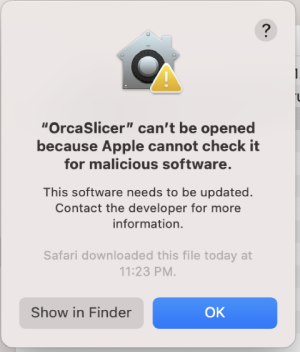
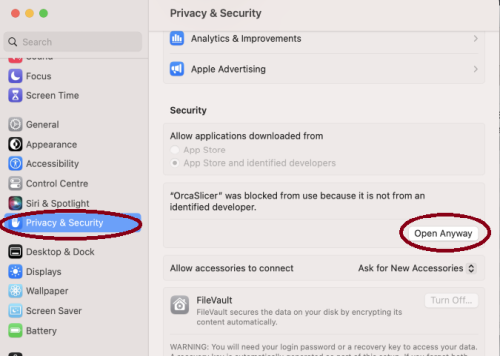
- Step 2: in
System Settings->Privacy & Security, clickOpen Anyway:
- Step 1: open the app, a warning window will pop up
-


Homebrew Cask
brew install --cask orcaslicer
The Homebrew cask installs the official macOS DMG from GitHub Releases.
Linux
Flathub (Recommended)
OrcaSlicer is available through FlatHub:

Install from the command line:
flatpak install flathub com.orcaslicer.OrcaSlicer
flatpak run com.orcaslicer.OrcaSlicer
It can also be installed through graphical software managers (KDE Discover, GNOME Software, etc.) when Flathub is enabled. Search for OrcaSlicer in your software center.
AppImage
AppImages are published for both x86_64 and aarch64 (ARM64). Pick the file matching your CPU — the ARM64 build has aarch64 in its name (e.g. OrcaSlicer_Linux_AppImage_Ubuntu2404_aarch64_*.AppImage).
-
Download App image from the releases page.
-
Double click the downloaded file to run it.
-
If you run into trouble executing it, try this command in the terminal:
chmod +x /path_to_appimage/OrcaSlicer_Linux.AppImage
How to Compile
All updated build instructions for Windows, macOS, and Linux are now available on the official OrcaSlicer Wiki - How to build page.
Please refer to the wiki to ensure you're following the latest and most accurate steps for your platform.
Klipper Note
If you're running Klipper, it's recommended to add the following configuration to your printer.cfg file.
# Enable object exclusion
[exclude_object]

# Enable arcs support
[gcode_arcs]
resolution: 0.1
Supports
OrcaSlicer is an open-source project, and we're deeply grateful to all our sponsors and backers.
Their generous support helps fund filaments and other essential 3D printing materials for the project.
Thank you! :)
Sponsors

|

|
Backers:
Ko-fi supporters ☕: Backers list
Support the project




Some Background
Open-source slicing has always been built on a tradition of collaboration and attribution. Slic3r, created by Alessandro Ranellucci and the RepRap community, laid the foundation. PrusaSlicer by Prusa Research built on Slic3r and acknowledged that heritage. Bambu Studio in turn forked from PrusaSlicer, and SuperSlicer by @supermerill extended PrusaSlicer with community-driven enhancements. Each project carried the work of its predecessors forward, crediting those who came before.
OrcaSlicer began in that same spirit, drawing from BambuStudio, PrusaSlicer, and ideas inspired by CuraSlicer and SuperSlicer. But it has since grown far beyond its origins. Through relentless innovation — introducing advanced calibration tools, precise wall and seam control, tree supports, adaptive slicing, and hundreds of other features — OrcaSlicer has become the most widely used and actively developed open-source slicer in the 3D printing community. Many of its innovations have been adopted by other slicers, making it a driving force for the entire industry.
The OrcaSlicer logo was designed by community member Justin Levine.
License
- OrcaSlicer is licensed under the GNU Affero General Public License, version 3.
- The GNU Affero General Public License, version 3 ensures that if you use any part of this software in any way (even behind a web server), your software must be released under the same license.
- OrcaSlicer includes a pressure advance calibration pattern test adapted from Andrew Ellis' generator, which is licensed under GNU General Public License, version 3. Ellis' generator is itself adapted from a generator developed by Sineos for Marlin, which is licensed under GNU General Public License, version 3.
- The Bambu networking plugin is based on non-free libraries from BambuLab. It is optional to the OrcaSlicer and provides extended functionalities for Bambulab printer users.